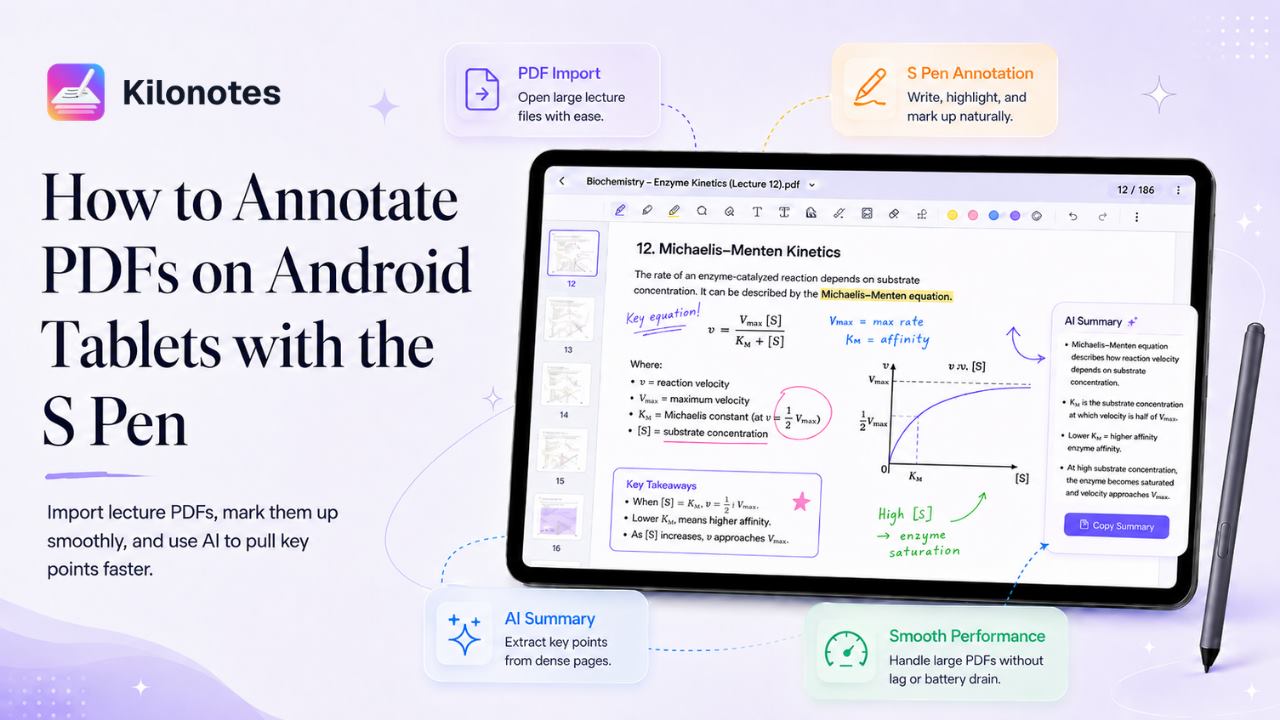
Android tablet users have spent years being treated as an afterthought in the note-taking conversation. Most "best apps for annotating PDFs" guides are really iPad guides with an Android footnote.
That's finally changing — Notability, long an Apple exclusive, launched a native Android app in August 2026,¹ and the major note-taking apps now all run on the platform. It's also overdue, because a Galaxy Tab S11 with an S Pen is a serious study device: arguably the best PDF annotation hardware you can buy, since Samsung's larger screens give you more usable page at readable size than any iPad, and the pen comes in the box.
This is a practical walkthrough: importing a heavy lecture PDF, annotating it with the S Pen without the app grinding to a halt, and pulling a usable summary out of it afterwards.
Not settled on hardware yet? Our guide to the best tablets for college students covers the iPad-versus-Android decision first.
Why the S Pen is genuinely good for this
Two things make Samsung's pen well suited to PDF work.
Latency. The current S Pen runs at sub-25ms, which is quick enough that the ink stays under the nib rather than trailing behind it.² For annotation — short, precise marks in tight margins — responsiveness matters more than it does for long-form writing.
No charging. The S Pen doesn't need power, which removes an entire category of problem. There's no version of a dead pen fifteen minutes into a lecture.
The current generation also uses a hexagonal barrel, which is more comfortable across a long session than a round one.² Minor on paper, noticeable after two hours.
Before you start: get the file onto the tablet properly
Most annotation problems are actually import problems. Two things to check.
Get the original, not a screenshot. Download the PDF your lecturer uploaded. Photographing slides off a projector or exporting them as images gives you a file with no text layer, which means nothing in it will ever be searchable.
Watch the file size. A 300-slide deck with embedded images can run past 100MB. Large files are where cheap annotation apps fall apart — they load the whole document into memory, and the tablet starts stuttering exactly when you need it not to. If a deck is enormous and you only need one week of it, split it before importing.
The annotation workflow
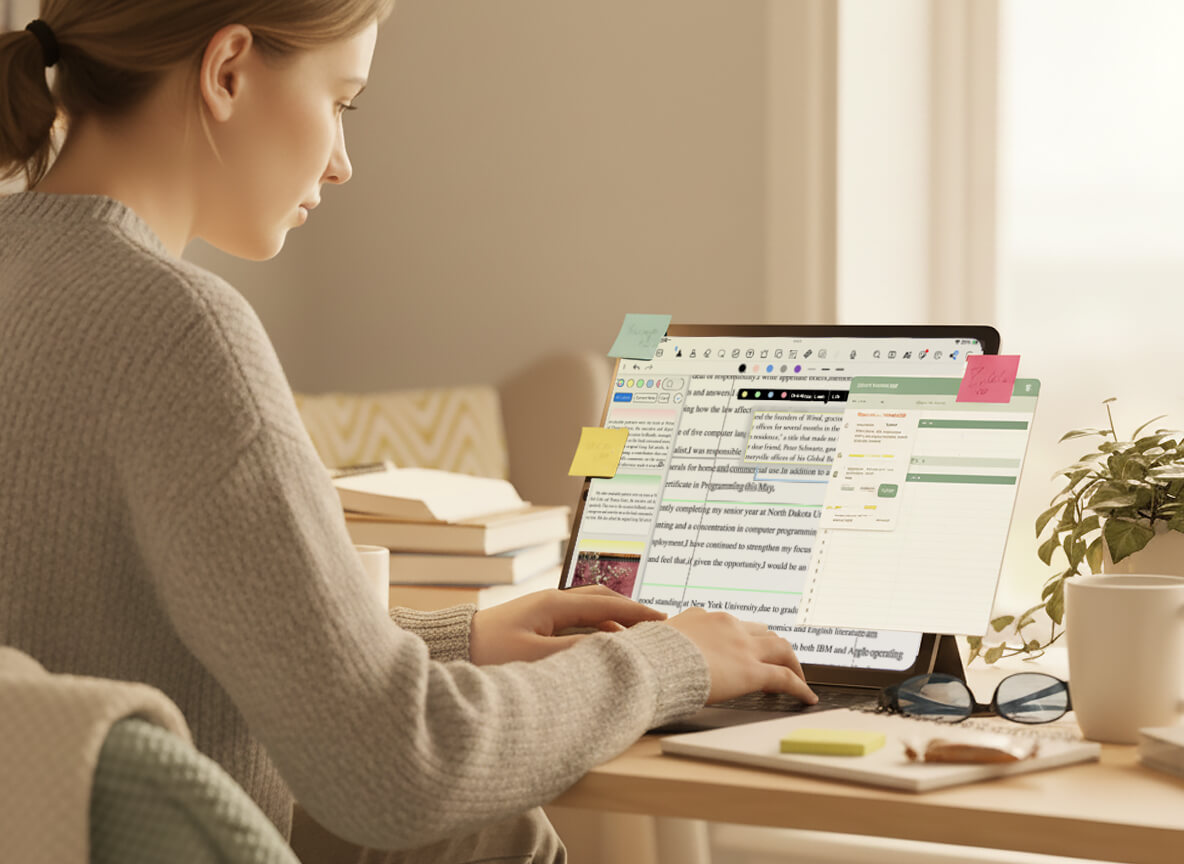
Here's the sequence that works for a lecture-slide PDF.
Import before the lecture, not during it. Bring the PDF into your notebook ahead of class. Loading a large file while the lecturer is already talking is a reliable way to miss the first ten minutes.
Set up your two or three tools and stop fiddling. A pen, a highlighter, and one accent colour. That's enough. Students who spend lectures changing pen colours are decorating, not studying.
Annotate in the margins, not over the content. Write in the whitespace beside a slide rather than across it. Slides are usually the lecturer's summary already — your value is the connective material they say out loud and never put on screen.
Mark confusion explicitly. Develop one symbol — a question mark, a circle, whatever — that means "I didn't follow this." When you review, those marks are the highest-value part of the document. Don't rely on remembering.
Use the S Pen button. Samsung's Bluetooth button shortcuts let you switch tools or undo without moving your hand to a toolbar.³ Small, but it compounds over a full lecture.
Getting something usable back out
Annotation is only half the job. A marked-up PDF you never open again is just a tidier version of paper.
This is where AI extraction changes the workflow. Instead of re-reading 60 slides in revision week, you pull the key points into a structured summary and use that as your revision surface, going back to the full document only where your confusion marks are.
It's also worth knowing why this ordering works. Re-reading feels productive but is one of the weakest study strategies; actively retrieving information — testing yourself against a condensed summary rather than passively reviewing the source — is substantially more effective for long-term retention.⁴ Extracting a summary and quizzing yourself against it isn't a shortcut around studying. It's the better version of it.
Make the whole thing searchable. If your handwritten annotations convert to text, every note you made across every lecture PDF becomes findable. In a module with twenty slide decks, that's the difference between a searchable archive and a folder you never open.
What to look for in an Android annotation app
If you're evaluating options, these are the things that actually separate them:
Handles large PDFs without lag. Test it with your biggest real deck, not a two-page sample.
Real S Pen support — pressure sensitivity, palm rejection, and Bluetooth button shortcuts, not just basic touch input.
Handwritten annotations stay editable and searchable, rather than being flattened into the PDF image.
AI extraction that summarises the document and your notes together.
Backup, so a lost tablet doesn't take a semester of annotations with it.
Export that preserves your work if you ever move apps.
That third point catches people out. Some apps flatten annotations into the page on export, which means your notes become part of the image and stop being searchable or editable. Check before you commit a semester to one.
Doing it in Kilonotes
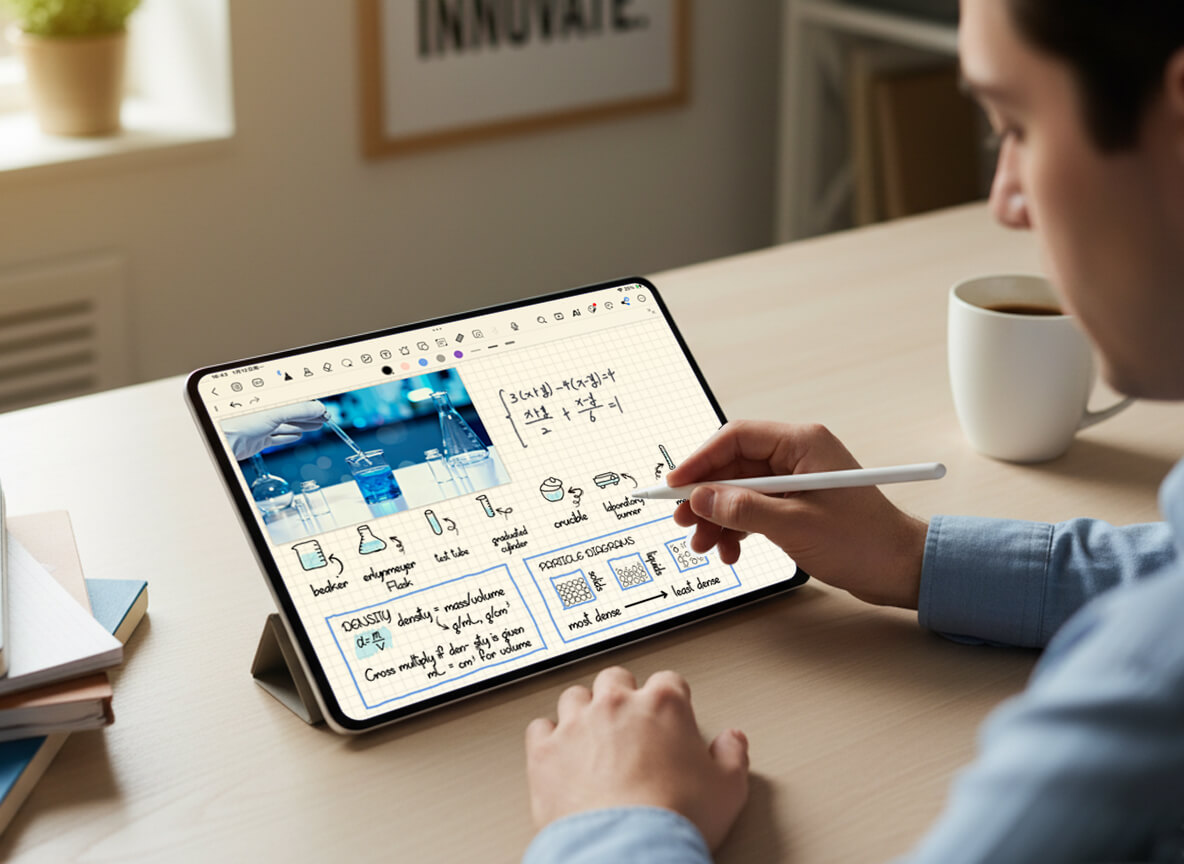
Kilonotes was built as a full Android app rather than a port, which is why the feature list doesn't shrink when you leave iPad.
You get full S Pen support with pressure sensitivity, palm rejection and Bluetooth button shortcuts, plus Wacom and USI styluses. Import lecture PDFs and annotate directly on them, and AI extracts the key points into a structured summary. Handwriting search indexes everything automatically, so annotations across every notebook stay findable, and backup means a broken tablet isn't a lost semester. It runs on any tablet on Android 12 or later, with the Galaxy Tab S series giving the best S Pen experience.³
The complete AI pipeline — record, recap, structure, polish — runs on Android with no feature gap, along with custom fonts and study templates.³
Ready to try it on your own lecture slides? Get Kilonotes for Android — available on Google Play or as a direct APK. Import your heaviest deck first; that's the honest test.
Footnotes
¹ Source: Ginger Labs, "Notability Brings Fully Native, AI-Assisted Note-taking To Android," 11 August 2026. https://www.businesswire.com/news/home/20260811736505/en/Notability-Brings-Fully-Native-AI-Assisted-Note-taking-To-Android
² Source: Tom's Guide, "Best Samsung tablets in 2026: expert tested and rated." https://www.tomsguide.com/best-picks/best-samsung-tablets
³ Source: Kilonotes, "Kilonotes for Android." https://www.kilonotesapp.com/en/android
⁴ Source: Jeffrey D. Karpicke and Henry L. Roediger III, "The Critical Importance of Retrieval for Learning." Science, 2008;319(5865):966–968. https://www.science.org/doi/10.1126/science.1152408