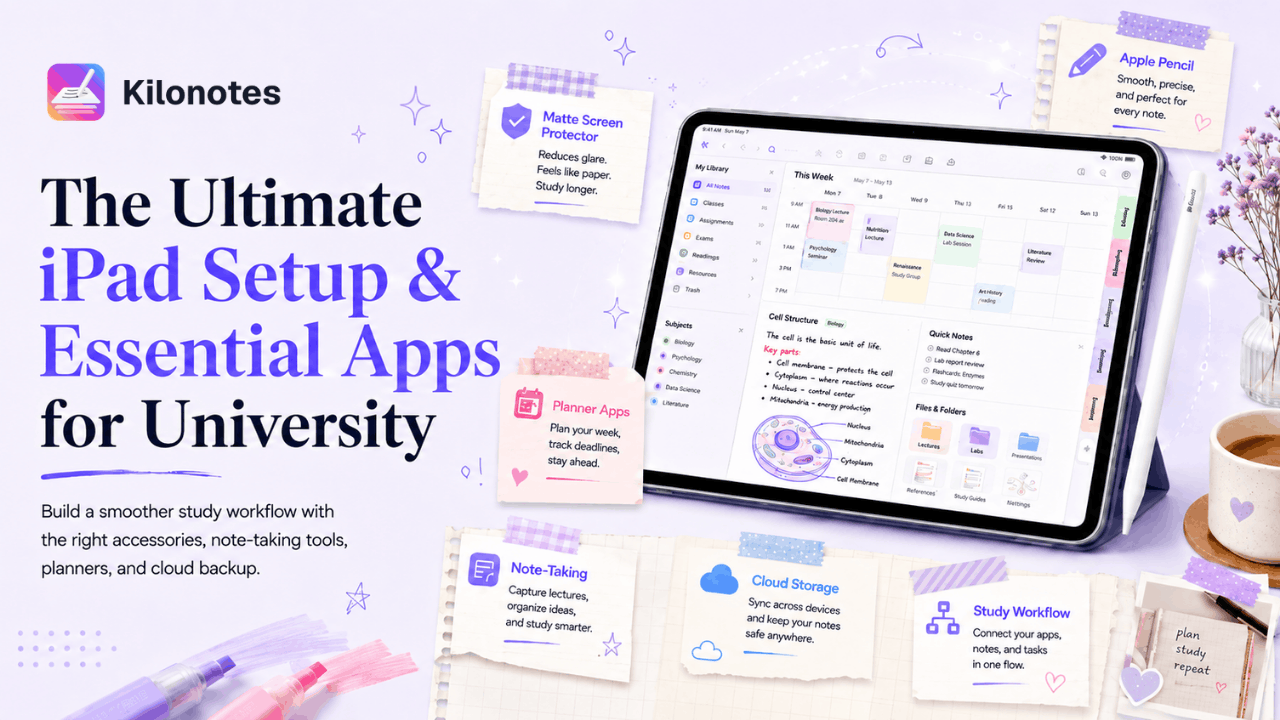
Most students set up a new iPad the same way: unbox it, install whatever app a friend recommended, and start writing. Six weeks later there are forty untitled notebooks, no way to find anything from week two, and a nagging sense that this was supposed to be more organised than paper.
The device isn't the problem. An iPad with a Pencil is a genuinely excellent study tool — the issue is that it ships as a blank slate, and a blank slate is exactly what you don't need in week one of a degree.
This guide covers the setup that actually holds up over a full academic year: the accessories worth buying, the categories of app you need, and the system that stops your notes turning into digital clutter by November.
Still deciding between platforms? Our guide to the best tablets for college students compares the iPad and Android ecosystems first.
The accessories that earn their place
You need fewer things than the internet will tell you. These are the ones that change your daily experience.
Apple Pencil
Not optional. Writing on an iPad without a Pencil isn't note-taking. Which one you need depends on your model — Apple Pencil Pro is compatible with the iPad mini (A17 Pro), the iPad Air 11-inch and 13-inch (M2, M3 and M4), and the iPad Pro 11-inch and 13-inch (M4 and M5).¹ If you have the entry-level iPad, check which Pencil generation it takes before ordering.
Two habits worth forming immediately: keep it magnetically attached so it charges passively, and buy a pack of spare tips. Nibs wear down faster than people expect, and a worn tip is the most common cause of "my writing feels scratchy now."
A matte screen protector
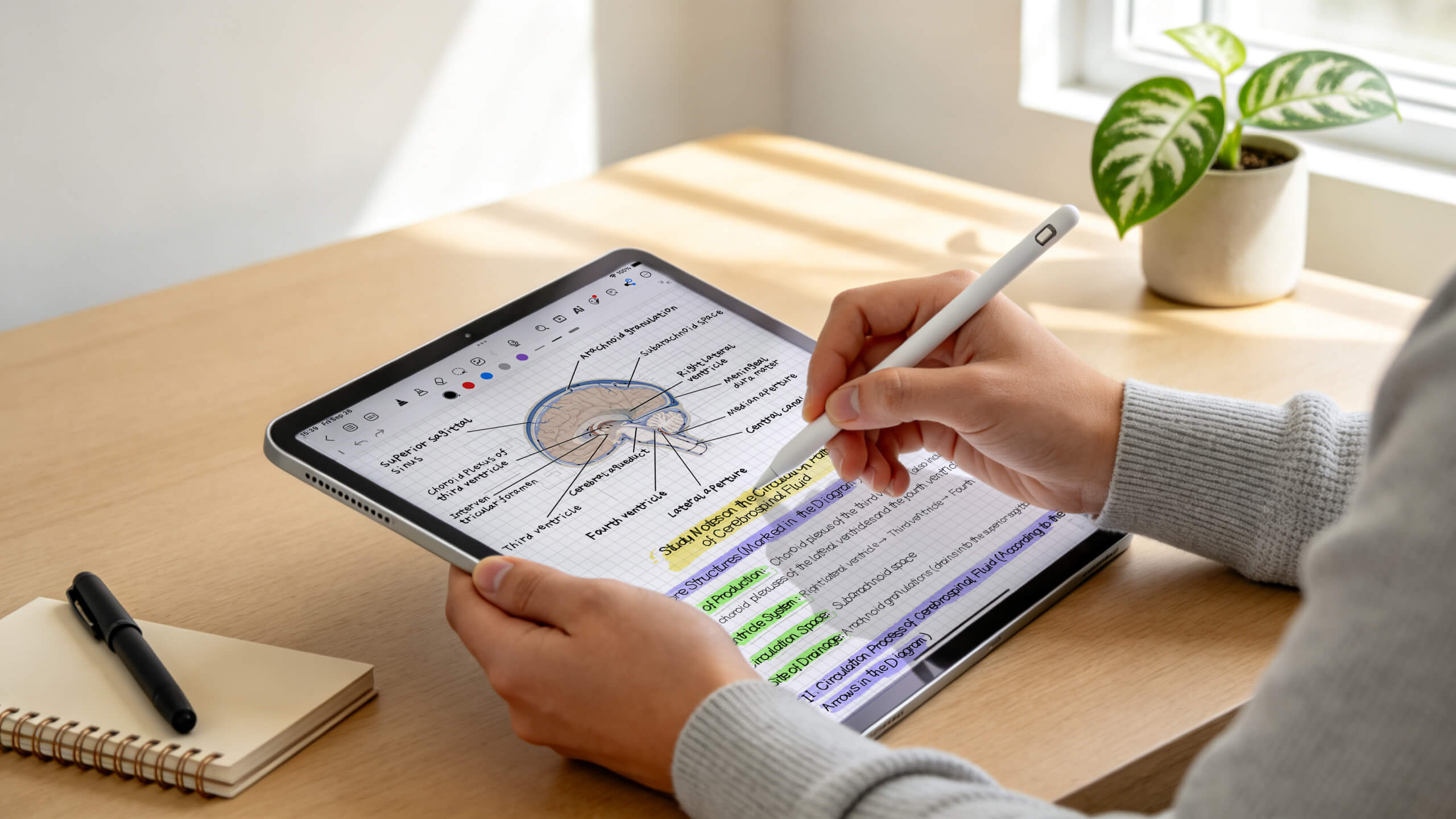
The single most underrated purchase. Glass is slippery under a plastic nib, and the friction of a paper-textured protector makes handwriting dramatically more controlled — particularly for anything small, like equations or annotations in a margin.
The trade-off is real and worth knowing: matte films slightly soften the display and wear your nibs faster. Most students who write daily consider it a clear win. If you mostly read and only occasionally annotate, skip it.
A stand or keyboard case
You'll spend more time reading on this device than writing on it. Any stand that holds a comfortable angle prevents a genuinely miserable term of neck strain. A keyboard case is worth it only if you plan to write essays on the iPad — if you have a laptop for that, save the money and the weight.
What to skip
Paper-like cases with built-in Pencil loops that add bulk, "productivity" dongles you'll use twice, and any cover so heavy it makes the tablet worse than a notebook to carry.
The four apps every student actually needs
Ignore the hundred-app roundups. Every functional student setup covers four jobs.
A note-taking app. The centre of everything. This is where lectures, annotations and revision material live, and it's the one decision worth being deliberate about.
A calendar and task manager. Deadlines, seminars, reading lists. Apple's built-in Calendar and Reminders are genuinely sufficient — a paid alternative solves a problem most undergraduates don't have.
Cloud storage. Non-negotiable. Whatever you use, the requirement is that a lost or broken iPad in exam term is an inconvenience, not a catastrophe. Confirm your note app backs up somewhere you can reach from another device.
A reference or reading tool. Somewhere to keep papers and manage citations. If you're writing a dissertation, set this up before you need it, not during.
That's it. A fifth app is usually procrastination wearing a productivity costume.
The setup that survives a full year
Accessories and apps are the easy part. The system is what fails by mid-term. Three rules keep it from collapsing.
One notebook per module, not per week. Weekly notebooks feel tidy in October and become unnavigable by December. A single notebook per module, in chronological order, means there's exactly one place to look.
Date every page, in a consistent format. This sounds trivial and it is the highest-leverage habit on this list. When you're revising in May and trying to locate the lecture where a concept was introduced, dates are how you find it.
Make everything searchable. This is the real advantage a digital setup has over paper, and most students never switch it on. If your handwriting is converted to searchable text, "I know I wrote that down somewhere" stops being a problem you have.
That last point connects to something worth knowing about why this works. Retrieval practice — actively pulling information back out of memory rather than re-reading it — is one of the most reliably effective study techniques there is.² A searchable archive makes self-quizzing frictionless, which is what turns a pile of notes into an actual revision system.
Split View is the iPad's real superpower
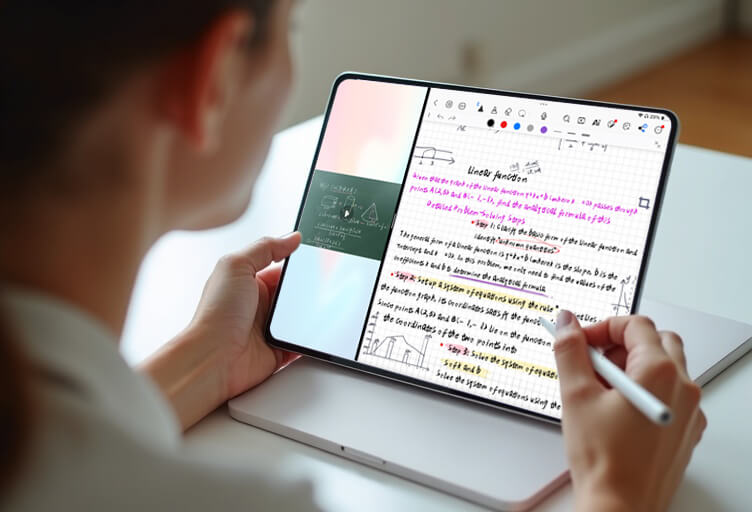
Underused and genuinely transformative. Put your lecture slides on one side and your notes on the other, and you stop the constant app-switching that fragments attention during a lecture.
The workflow is straightforward: open your PDF or browser on the left, your notebook on the right, and drag content directly between them. Anything you can drag — an image, a quote, a diagram — goes straight into your notes without a screenshot detour.
If you take one thing from this guide, make it this. It's the closest an iPad gets to having a desk.
Putting it together
The setup above is app-agnostic on purpose — the principles hold whatever you run. But the note-taking app is where most of it lands, because it has to handle lecture capture, PDF annotation, search and revision in one place.
Kilonotes is built around that whole loop. Apple Pencil Pro support with pressure, tilt and barrel roll; sub-50ms ink latency; full Split View and drag-and-drop; and Spotlight search that finds handwritten notes from the iPad home screen.³ Handwriting converts to editable text with maths equations recognised, AI recaps pull key points out of recordings and PDFs, and everything stays searchable across every notebook.
The point isn't the feature list — it's that the searchable, dated, one-notebook-per-module system above only works if the app underneath it supports all four jobs without you gluing three tools together.
Comparing the main options first? Read our breakdown of GoodNotes vs. Notability vs. Kilonotes before you commit to one.
Ready to set your iPad up properly? Download Kilonotes free and start with one notebook per module.
Footnotes
¹ Source: Apple, "Apple Pencil compatibility with iPad models." https://support.apple.com/en-us/108937
² Source: Jeffrey D. Karpicke and Henry L. Roediger III, "The Critical Importance of Retrieval for Learning." Science. https://www.science.org/doi/10.1126/science.1152408
³ Source: Kilonotes, "Kilonotes for iPad." https://www.kilonotesapp.com/en/ipad